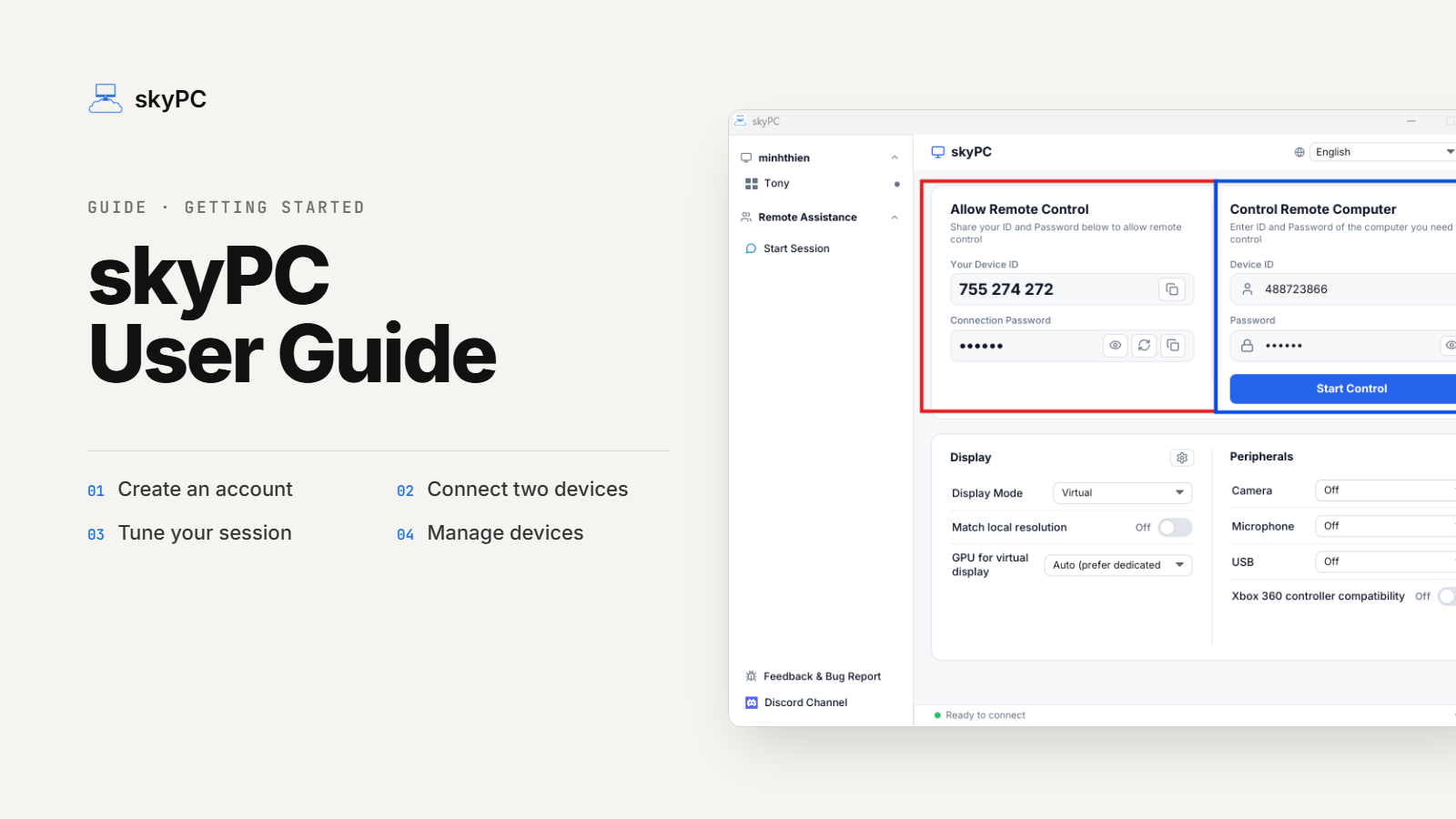
skyPC is remote desktop software that lets you access and use another device as if you were sitting right in front of it. It supports sharing cameras, microphones, USB devices, and game controllers, along with a range of options to fine-tune video quality and latency for both work and play.
This guide is for new users getting started with skyPC, from creating an account and connecting two devices to customizing your session settings.
Step 1: Create an Account
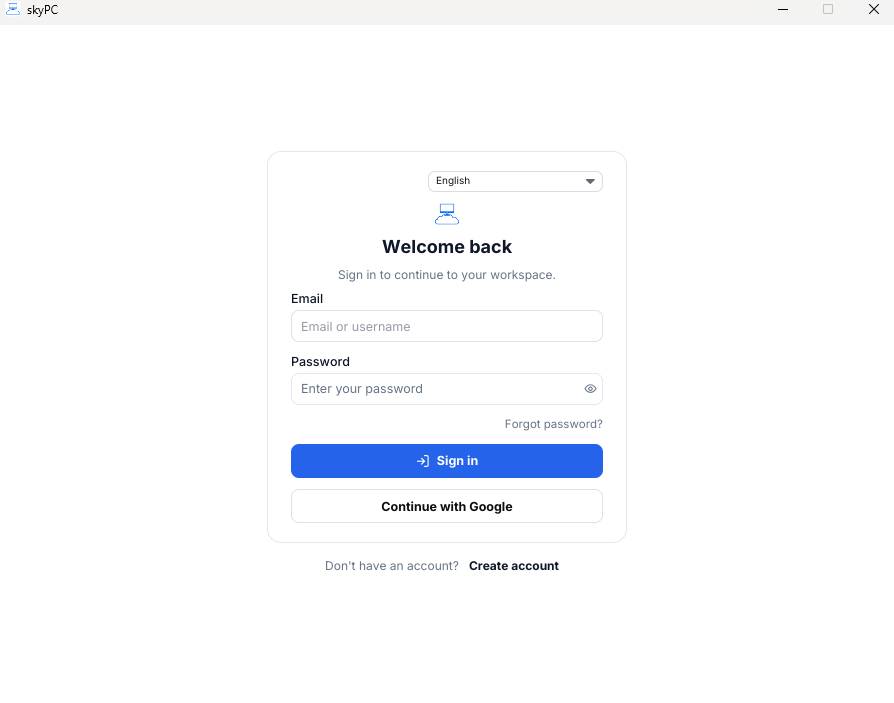
You can create an account manually or sign in quickly with your Google account.
Step 2: Share Your Device / Access & Control Another Device
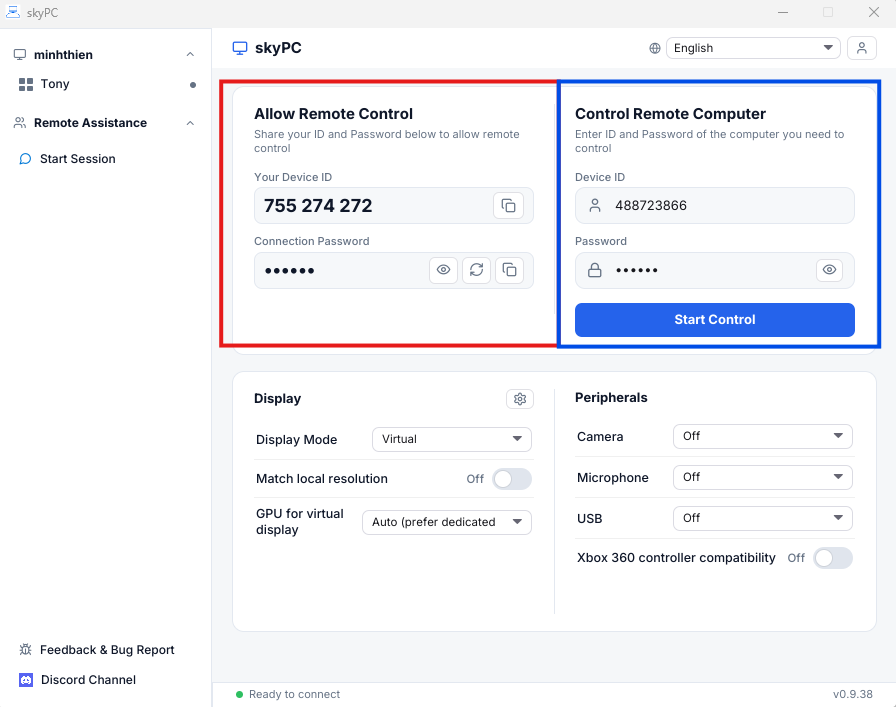
- Be the host (allow someone else to access and use your device): share the information in the red-outlined box.
- Be the client (access and control another device): enter that device's information into the blue-outlined box.
Step 3: Configure Your Session
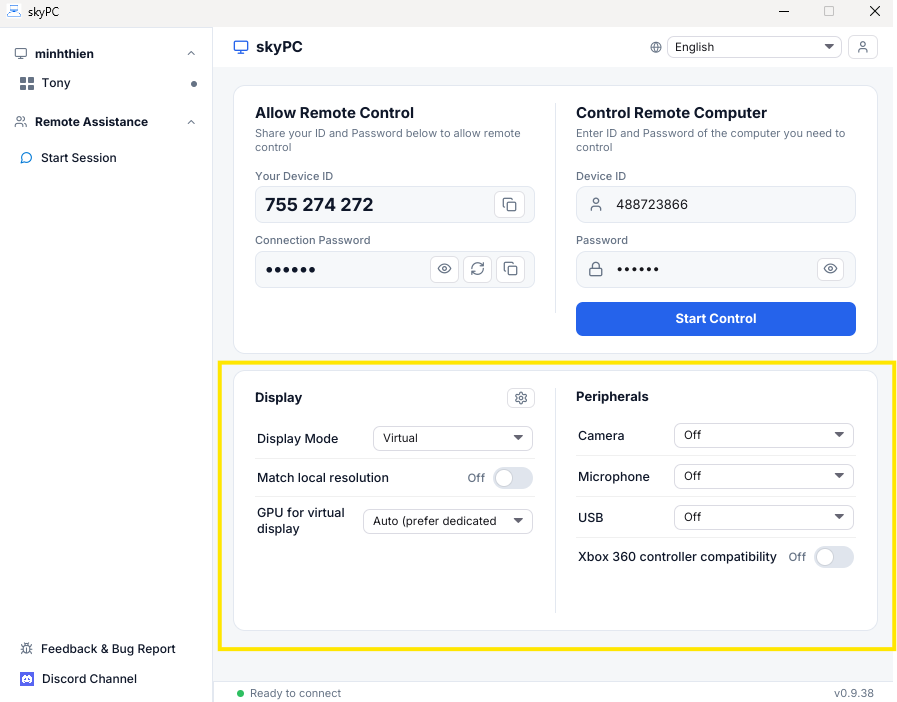
3.1 Display
skyPC supports two display modes:
1. Physical Display
- Mechanism: The host machine must have a monitor connected. The client receives and displays the host's output exactly as-is, with all its original specs.
- Pros: Both host and client can view the session.
- Cons: If the two displays have different aspect ratios (e.g., 16:9 vs. 16:10), the client may see a distorted image or cropped edges.
2. Virtual Display
- Mechanism: The host machine doesn't need a monitor connected (if one is connected, the host's display automatically turns off once the session starts). The software automatically adjusts the display output to match the client's specs.
- Pros: Accurate display on the client side, with no aspect ratio mismatch or cropping; the host can operate independently without a monitor.
- Cons: Only the client can view the session.
3.2 Peripheral Devices
Allows the client to share its camera, microphone, and USB devices with the host.
- Mechanism: Once sharing is enabled, the host detects and uses the client's devices directly.
- Example: You remote into a host machine (which has no webcam/microphone) to join an online meeting. Thanks to this feature, the host can still use the client's webcam/microphone, so your video shows up normally in the meeting.
- Example (USB): You plug a USB device into the client, and the host detects and accesses the data directly, just as if the USB were plugged into the host itself. This is especially handy for connecting a game controller or a USB security token for remote digital signing.
skyPC also includes an Xbox 360 Controller Mode. Since some games only recognize Xbox 360 controllers, this feature gives you more flexibility to play, no matter what type of controller you're using. (Don't forget, skyPC still fully supports DualSense features!)
3.3 Streaming & Performance
Click the gear icon in the Display section to open the settings.
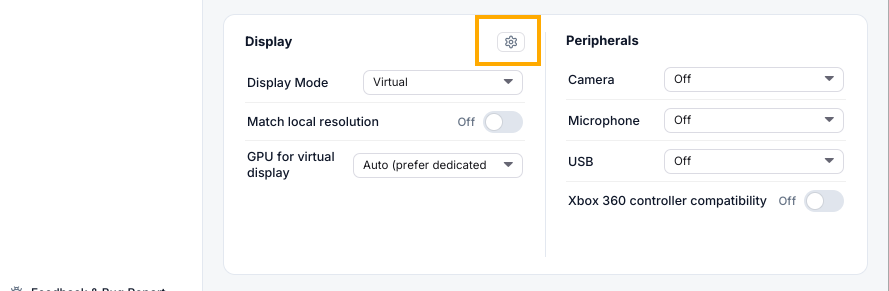
By default, the software automatically optimizes settings based on your internet connection and device configuration at the time of connection. You can also adjust them manually:
- Video encoder
- Frame rate (FPS)
- Bitrate
- Color format (4:2:0 or 4:4:4)
- HDR mode
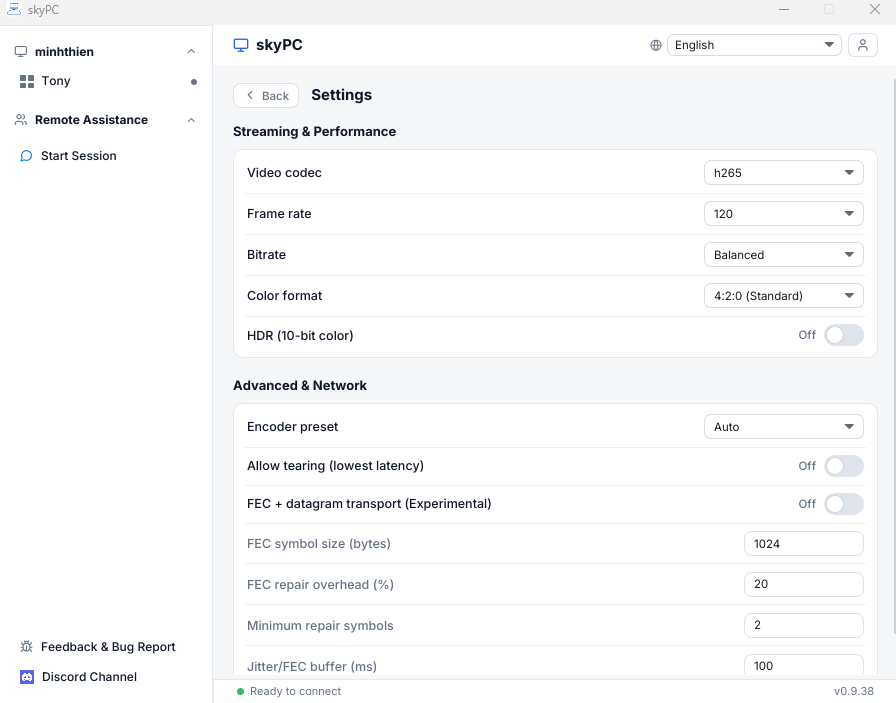
3.4 Advanced & Network
Settings for advanced users, designed to reduce latency and improve streaming stability:
- Latency Optimization: Allows screen tearing to achieve the lowest possible latency.
- Connection Error Correction: Recovers lost data packets during unstable connections, reducing lag and stuttering.
- Technical Parameter Tuning: Manually configure the encoder, symbol size, error correction percentage, and Jitter/FEC buffer based on your needs.
Step 4: Device Management
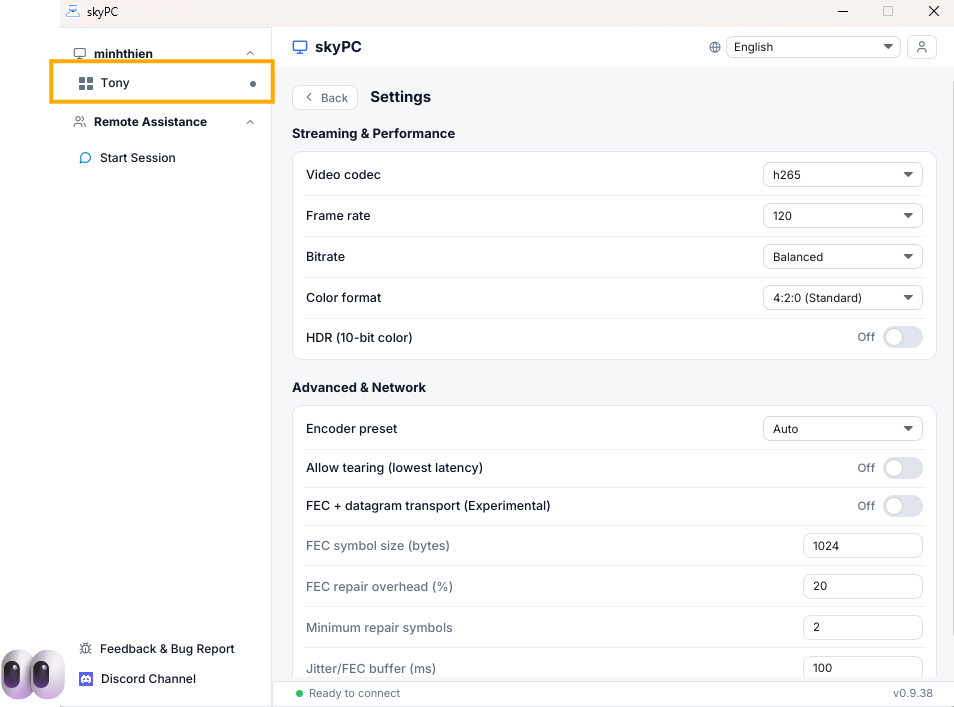
The device list shows all machines currently signed in under the same account.
Join the official skyPC Discord channel now to experience the latest updates and get fast support!